How to Connect a Web App to SQL Server: A Complete Guide
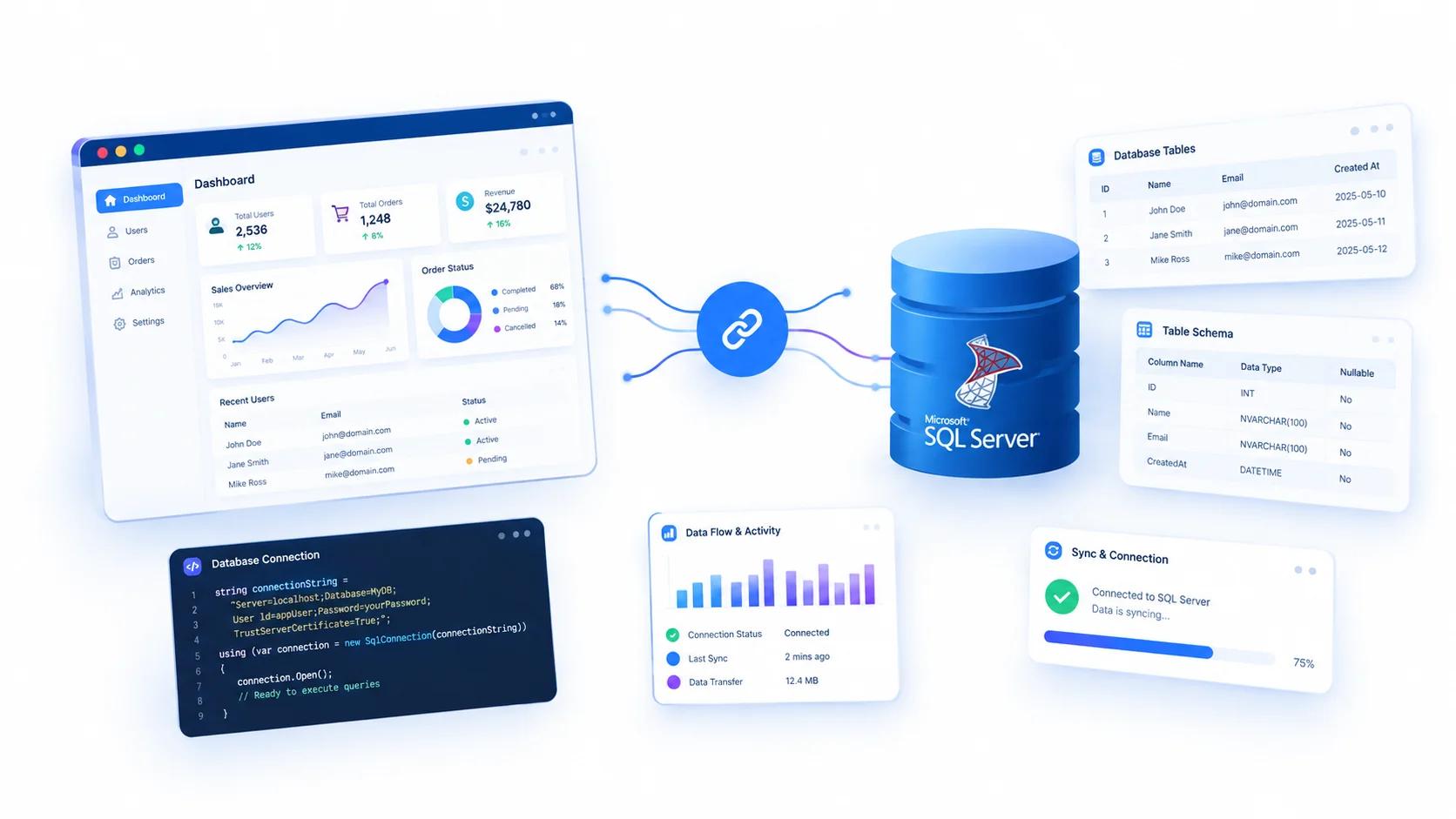
Connecting a web app to SQL Server means establishing a secure link between your application code and a SQL Server database so your app can read, write, update data in real time. This task sounds straightforward; until you are staring at a connection error at 2 AM wondering where it all went wrong.
To connect a web app to SQL Server, you need a running SQL Server instance, a database and user with appropriate permissions, a compatible driver, a secure connection string, and server-side database code. Configure TCP/IP and firewall access where required, keep credentials outside source code, test the connection independently, and use parameterized queries for safer data access.
In short: you need the right driver or library for your programming language, a properly formatted connection string with your server details and credentials, and network or firewall access configured to allow the connection. Get these three rights, and most web apps can connect to SQL server within minutes.
This guide walks you through everything; preparation, connection methods, troubleshooting, and testing, so you can build a solid, secure database connection without the guesswork.
What you Need Before Connecting a Web App to SQL Server
Before you write a single line of connection code, get your foundation right. Skipping this step is the fastest way to hit walls later.
A running SQL server instance: This could be on premises, in Azure SQL Database, or hosted elsewhere. Know your server's name, port, and instance name.
Valid credentials: You will need either SQL server authentication (username and password) or Windows authentication, depending on your setup.
Network access: Your web app’s hosting environment must be able to reach the SQL server. Firewall, VPC rules, and IP whitelisting all matter here. If your app runs in the cloud and your database sits on premises, you will likely need a VPN or hybrid connection.
The right driver or library: Depending on your tech sack; Node.js, Python, .NET, PHP, Java; you will need the appropriate SQL server driver installed.
A clear understanding of your data access pattern: Are you running simple queries, complex transactions or heavy analytics? This shapes whether you go direct, use an ORM, or adopt a hybrid approach.
Get these five things in order, and the actual connection step becomes dramatically simpler.
Step-by-Step: How to Connect your Web App to SQL Server
Here is the practical sequence most developers follow.
Step 1: Install the SQL Server driver for your stack. Every language has its own connector. .NET uses SqlClient. Node.js commonly uses the mssql package. Python relies on pyodbc or pymssql. PHP uses PDO or sqlsrv. Install the one that matches your environment.
Step 2: Build your connection string. This is the single most important piece. A connection string tells your app where the database lives, how to authenticate, and what options to apply. It typically includes the server address, database name, authentication method, and encryption settings.
Step 3: Store credentials securely. Never hardcode connection strings directly in your source code. Use environment variables, a secrets manager, or your platform’s configuration system. This keeps credentials out of version control and makes rotation easier.
Step 4: Establish the connection in your app. Open the connection, run a simple test query, and confirm you get a response. Start with the simplest possible connection before adding pooling, retries, or advanced options.
Step 5: Add connection pooling. Opening a new database connection for every request is expensive. Connection pooling reuses existing connections, dramatically improving performance under load. Most drivers support this natively; just configure the pool size appropriately.
Step 6: Handle errors gracefully. Wrap your connection logic in proper error handling. Log failures with enough context to debug but never expose raw database errors to end users.
Following this order avoids one of the most common beginner mistakes: writing complex database logic before confirming the basic connection actually works.
SQL Server Connection Methods Every Developer Should Know
There isn’t just one way to connect a web app to SQL Server, and the right method depends on your stack and environment.
SQL Server Authentication uses a username and password stored specifically for database access, independent of the operating system. This is common for cloud hosted applications and cross platform apps that don’t run on apps.
Windows authentication relies on the credentials of the user or service account running the application and is common in internal enterprise applications running on Windows servers within a trusted network.
ORM-based connections (Object Relational Mapping tools) let developers interact with the database using code objects instead of writing raw queries directly, which many teams prefer for maintainability on larger projects.
Connection pooling isn’t a separate method but an important layer on top of any connection approach; it reuses existing database connections instead of opening a new one for every request, significantly improving performance under load.
For most web apps, a driver-based connection with pooling handles the job well. ORMs make sense when development speed matters more than absolute performance.
Common SQL Server Connection Errors and How to Fix Them
Connection errors are frustrating, but they are almost always one of a handful of causes.
“Login failed for user.” Usually a credentials problem; wrong username, wrong password, or the accounts lacks permission to access the target database. Verify the login exists and has the right roles assigned.
“A network related or instance specific error occurred.” This is the classic connectivity failure. Check that the server is reachable, the port is open, and the firewall allows your app’s IP address through.
“Cannot open database requested by the login.” The login works, but it doesn’t have access to that specific database. Grant the necessary permissions or point your connection string at the correct database.
“Connection timeout expired.” Your app cannot reach the server within the allowed time. Often caused by network latency, firewall rules, or an overloaded server. Increase the timeout consciously but investigate the root cause first.
“SSL/TLS error during handshake.” Encryption mismatch between client and server. Check your encryption settings in the connection string and confirm the server’s certificate is valid.
“Too many connections.” You have hit the connection limit. This usually means pooling isn’t configured properly, or connections aren’t being closed after use.
The pattern across all of these: verify credentials, verify network access, verify permissions. Most issues fall into one of those three buckets.
How to Test and Troubleshoot your SQL Server Connection
Testing should happen in layers, not all at once.
Start at the network level: Can your machine or server reach the database host? Use basic connectivity tools to confirm the port is open and responding.
Test authentication separately: Connect with a database client tool using the same credentials your app uses. If that works but your app fails, the problem is in your app’s configuration; not the database.
Run a minimal query: Once connected, execute something simple like selecting a single value. This confirms the connection works end to end before you introduce complexity.
Enable detailed logging: Most drivers let you log connection attempts, queries, and errors. Turn this on during troubleshooting and turn it off in production.
Check connection pool behaviour: If your app works initially but fails under load, pooling is likely the culprit. Monitor active connections and adjust pool settings.
Monitor performance over time: A connection that works today might degrade as your app scales. Track query times, connection counts, and error rates continuously.
If you are building enterprise grade applications and want expert help structuring your database layer, working with a team experienced in custom software development such as Arismeta, can save months of trial and error.
Conclusion
Connecting a web app to SQL Server isn’t complicated once you break it into stages: prepare your environment, choose the right connection method, handle errors intelligently, and test systematically. The developers who struggle most are usually the ones who skip preparation and jump straight to code.
Get the fundamentals right, secure your credentials properly, and test in layers and your database connection will be one of the most reliable parts of your application.
At Arismeta, we build enterprise grade software solutions with secure, scalable database architecture at the core. Whether you need help with custom software development, AI powered enterprise solutions, or e-commerce optimization, our team delivers solutions that stand up in production.
Let's discuss your project and see how we can accelerate your digital transformation.
FAQs
1. What is a connection string in SQL Server?
A connection string is a formatted piece of text containing the details an application needs to connect to a database; typically, the server address, database name, authentication method, and credentials, combined in a specific structured format.
2. Why is my web app not connecting to SQL server?
Most connection failures stem from an incorrect server address, wrong credentials, mismatched authentication method, or firewall rules blocking access. Testing the connection with a database tool separately from your app helps isolate the cause.
3. Do I need a special driver to connect to SQL Server?
Yes. Each programming language requires a specific driver or library to connect with SQL Server, such as a data provider for .NET or a database connector package for Node.js, Python, or Java applications.
4. What's the difference between SQL Server authentication and windows authentication?
SQL Server authentication uses a dedicated username and password for database access, while windows authentication relies on the credentials of the user or service account running the application within a trusted network.
5. How do I fix a SQL Server connection timeout error?
Connection timeouts usually indicate an incorrect server address, a firewall blocking the connection, or the database server being unreachable from the application’s network. Verifying network access and server details typically resolve this.